











Tech Guide: Welcome to another helpful ntlivenews tech guide article on how to troubleshoot Windows and Linux operating systems on personal computers, laptops, or other devices. Read other articles on this blog: PERFORMANCE ISSUES SOLVED, boot failure repair, network failure solved, driver or hardware driver installing command line prompt, software-related problems, etc.
What is the meaning of troubleshooting the operating system?
Troubleshooting an operating system, SUCH AS WINDOWS, LINUX, etc, is nothing but a method to identify system problems, analyse symptoms and logs, and resolve the problem by repairing it either by using available system application tools or with the command line prompt. Many personal computer or laptop users of various OS sometimes find errors while using the system, maybe in the software, internet connectivity, or caching issues, and to do this, they need to know basic knowledge of how to solve such issues when they arise. In the paragraphs below, you will find the methodology, command-line code, and more details.
Steps involved in the OS Troubleshooting Methodology
- The first step is the process of identifying and documenting the problem by noting down the log errors, the time the problem occurred, changes made to the system, and the symptoms the devices show
- After the first step is completed, the next step is examining the logs and the device system status. For Linux OS users, you will find the system logs in the var/log or in the var/log/syslog. For Windows PC use, the logs can be viewed using the system utility application Event Viewer, which allows you to examine the logs for system, security, and application events.
- Prepare a proper probable cause theory. This can be done by referencing the information collected and hypothesizing it. (For example, say the computer was shut down due to RAM failures. or Water Drop or Break Our Update, Not Found, and more.
- Testing the cause theory and implementing exact solutions
- In computing, when preparing for any error, an exact solution is required; if it is not executed, it is called a failure. So the fifth step is testing the cause theory and making a solution to fix the problem.
- The last step is the verification of the system functionality by checking and documenting how it processes to bring the solutions.
How to fix common issues with Windows and Linux OS devices using specific tools?
Many of the users already know that the use of Windows and Linux PC is not similar. As you all know, Windows PC are used, but using Ubuntu OS or SUSE on them might be a little difficult for first-time users. For beginners, it is suggested to learn the basics of the Linux common issues parting guide. This isn’t to imply that Windows is straightforward for beginners; they are all the same.
In the table below, a list of specific tools or command lines is given to solve errors in Windows and Linux pc
| Issues | WINDOWS TOOLS | Linux (Ubuntu and SUSE) Command |
| Device Performance | Using the Task Manager utility tools. This can be opened on such a PC or laptop by pressing Ctrl + Shift + Esc on the keyboard. This helps in checking your PC’s CPU, memory usage, and disk space | top or htop to check CPU central processing unit memory usage, and also use the df -h command to check the disk space |
| System boot failures | In such cases, you can use the option to advance startup, which allows you to check and repair the boot failures. Other options include booting into safe mode on the computer, or you can also resort to a previous working start if you have a backup. Another method is to check the BIOS boot sequence order settings | There are various ways to repair a Linux PC boot failure. The easiest is booting into recovery mode. Other options include inspecting the logs using a live USB stick or the dmesg or journalctl -xb command line prompt, which can check the disk integrity and reinstall the GRUB bootloader in the system |
| Network Connectivity error | You can use the ifconfig command in the command prompt of your Windows PC to check the network settings. You can also go to the Control Panel > Network Connections to troubleshoot. Checking Windows Defender Firewall or other antivirus firewall settings is also suggested | On Linux computers or OS X devices, you can use the command ip addr or ipconfig to learn the configuration and ping or traceroute to test internet connectivity. You can also use the iptables command to show the firewall rules. |
| Driver or hardware problems | Device Manager is a very helpful tool for driver or hardware failure, and to know which drivers are missing required updates. You will find any failure with the yellow triangle indication. What can be done to solve this? Install Windows updates and install the driver updates. | The use of lspci and lsusb is suggested to show the list of devices in the system, and lsmod for checking compatibility issues and updates. I am using the command line apt for Ubuntu and YaST for SUSE OS computers. |
| Software-related problems | To resolve such issues, just reinstall the application or install the required updates. | sudo apt-f install <package> This command line will help in checking and updating |
How to check Logs, update the OS, run system diagnostics, and write code.
To clearly understand and learn how to check logs on the Ubuntu PC, please follow these steps
- ON YOUR Ubuntu PC, PRESS CTRL+ALT+T, THEN it will open teh command line prompt.
- At the command line prompt, enter this code: journalctl -xe, and this code
- On entering this prompt, you will be able to see the system logs of any Ubuntu PC. Have a look at the screenshot below
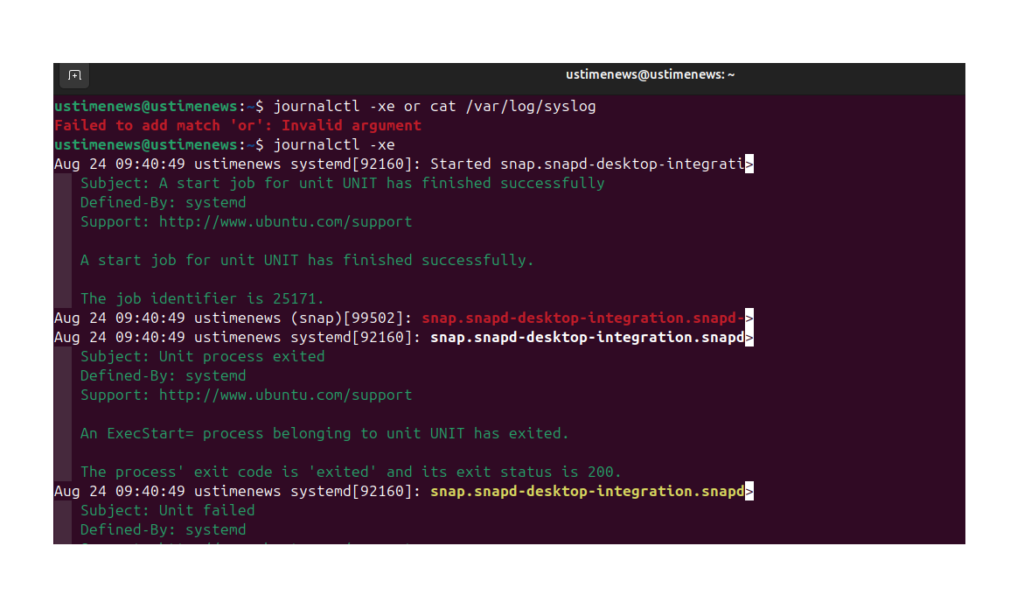
If you wish to see the authentication logs, use the Code below
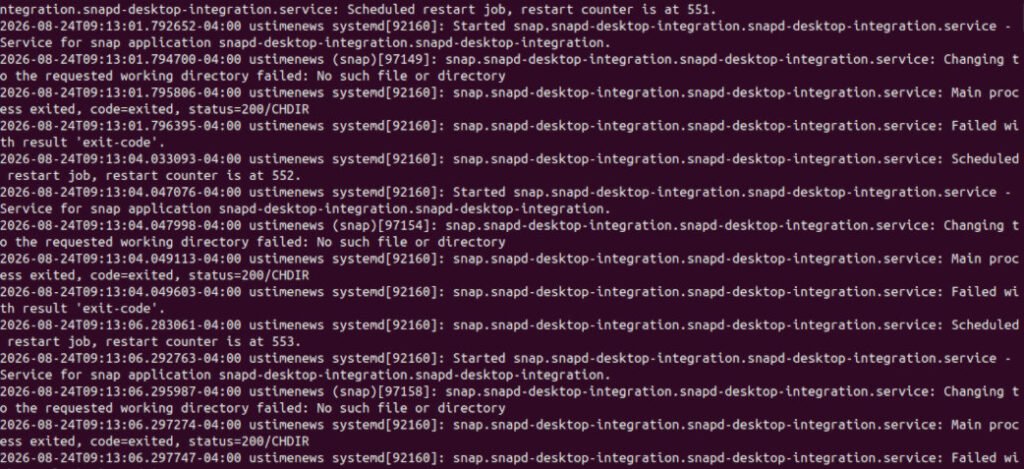
“cat var/log/auth.log “and to check the system log, use “Cat Var/log/syslog” code.
When we type to “Cat var/log/syslog” command on the Ubuntu prompt, it shows the following process
To check the system authentication log, use the syntax below
Cat Var/log/auth.log
Learn from this video, Also on youtube
How to Update Ubuntu OS?
To update the Ubuntu Operating system, you can use the following codes
- sudo apt update: Update the PC
- sudo apt upgrade -y: Use to upgrade the Ubuntu PC
- sudo apt autoremove -y: Used to clean unused packages
Let’s Perform this and show you exactly how it can be done on your PC, use ctrl+alt+t to open the command shell prompt and enter one by one the code
To run Ubuntu OPC diagnostic to check system health, hardware status, and disk space, you can use the following code
- To view the system overview use code: “uptime”, “df -h” and “free -h” as shown in the VIDEO ALSO
- To check for any failed system services, use the code “systemctl –failed”
In case, to check the setting of teh Network configuration and Active listerner use this code below
“ss -tulnp” used to vie the acirtver network portts and to view the OS version , use the code “cat /etc/os -release ”
In conclusion, here is a very useful guide on how to repair common computer issues for those who are using Windows and Linux Ubuntu or SUSE OS on personal computers. This guide will help you learn how to fix network and software failures, hardware issues, booting problems, and many more.
Lastly, if you are interested in discussing how to repair a Linux or Windows PC, then join our free OS Repair talk forum by posting. To get more such helpful articles, stay tuned to us 24/7.